
Guide · 4 min read
Repair or replace your computer? How to decide
Weighing up a repair against a new computer? Look at the fault, its age, Windows 11 support and your data to make a sensible call for home or business use.
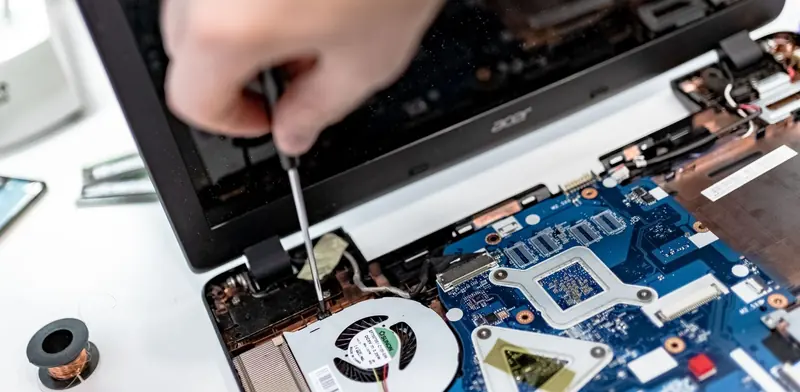
When a computer breaks or slows to a crawl, the question is always the same: is it worth fixing, or is it time for a new one? Shop staff often lean towards replacing, while a thrifty streak says repair. Neither answer is right every time. The sensible choice depends on the fault, the age and specification of the machine, and how heavily you rely on it for work or home life.
This guide gives you a straightforward way to weigh it up. It covers the faults that are usually worth repairing, the warning signs that a computer has reached the end of its useful life, and the hidden costs on both sides of the decision - including the time it takes to set up a replacement properly and move everything across from the old machine.
From $135 + GST + $30 call-out ($185.25 incl. GST)
Quick checklist
- Write down exactly what the fault is and when it happens
- Back up important files straight away
- Check whether the computer can run Windows 11
- Ask for the whole machine to be tested, not only the fault
- Think about the setup work a replacement would need
- Make sure old drives are wiped before disposal
Faults that are usually worth repairing
Plenty of common faults are straightforward to fix and leave you with a computer that still has plenty of use left in it. A failed hard drive can be replaced with a faster SSD. A cracked laptop screen, worn keyboard or tired battery can be swapped for a new part on most models. Software problems such as a corrupted Windows installation or malware are fixed without touching the hardware at all.
- Failed or slow storage drive
- Cracked laptop screen
- Worn or damaged keyboard
- Battery that no longer holds a charge
- Broken charging port or power adapter
- Corrupted operating system or malware
Signs it is time to replace
Some faults cost more to fix than the computer is worth. A failed motherboard in an older laptop, serious liquid damage or a processor that cannot run current software are usually where repair stops making sense. The other big factor is support. Windows 10 support ended in October 2025, so a computer that cannot run Windows 11 no longer receives regular security updates, which matters a great deal for a business handling customer information.
Look at the whole computer, not just the fault
Before approving a repair, ask what else is close to failing. A laptop with a dead screen might also have a worn battery, a hinge starting to crack and a hard drive that is slowing down. Fixing one part and then another a little later adds up quickly. A technician can test the rest of the machine at the same visit, so you see the full picture before you decide and are not surprised by the next fault.
Do not forget the cost of change
A new computer is more than the purchase. Someone has to set it up, install your software, sign in to email and cloud accounts, connect printers and copy files across. Older accounting or industry software may need licence transfers, or may not install on a newer version of Windows at all, which can turn a simple swap into a project.
For a business, the time staff lose while a new machine is sorted out can outweigh the difference between repairing and replacing. Planning a replacement ahead of failure, rather than in a crisis, keeps that disruption small and lets you choose the right model instead of whatever is in stock. It also gives you time to test the new setup before the old computer is retired.
Protect your data either way
Whether you repair or replace, your files are the part that cannot be bought again. If a computer is showing signs of failing - clicking noises, frequent freezes or error messages about the drive - back it up before anything else happens. When you do replace a computer, the old drive still holds your information. Wipe it properly or keep it somewhere safe rather than sending it to a recycler with everything still on it.
When to call a technician
Book an onsite technician to diagnose the fault before you decide. We test the drive, memory, battery, screen and ports, check Windows 11 compatibility and explain what the repair involves alongside what replacing would mean. If repair makes sense, we carry it out. If replacement is the better call, we can set up the new computer, move your files and software across and wipe the old one securely.
From $135 + GST + $30 call-out ($185.25 incl. GST)
Related services
Computer & Laptop RepairSlow, broken or virus-ridden? Fixed onsite where we can.Computer UpgradesSSDs, memory, Windows 11, graphics cards and power supplies fitted - with honest upgrade-or-replace advice.PC & Laptop RolloutsNew computers prepared, deployed and old ones wiped and retired.Common questions
How old is too old for a computer repair?
Age alone is not the deciding factor. A well-built business laptop can be worth repairing long after a budget model has been retired. What matters more is whether it runs current software, still receives security updates and has a fault that can be fixed with readily available parts.
Is liquid damage worth repairing?
Sometimes. If the computer was switched off quickly and the spill was plain water, cleaning and replacing a keyboard can bring it back. Sugary drinks, coffee and machines left running after a spill often cause corrosion on the motherboard, which is far less likely to be worth fixing.
Can you get my files off a computer that will not start?
In many cases, yes. If the storage drive itself is healthy, files can usually be copied off even when the rest of the computer has failed. A drive that is physically damaged is a harder job and may need specialist data recovery work.
Should a business repair or replace staff computers?
Repair makes sense for newer machines with a single fault. Older computers that cannot run Windows 11, or that keep needing attention, are usually better replaced on a plan, so staff get consistent, supported machines and the office avoids a run of unexpected failures.
More guides
- Which computer upgrades are worth the money?Not every upgrade earns its keep. See which computer upgrades - SSDs, memory, batteries, monitors and docks - give real gains, and which ones rarely pay off.
- Why your computer keeps freezingComputer freezing or locking up? Learn the common causes - overheating, failing drives, memory faults, drivers and software - and how to narrow them down.
- Wi-Fi not working? How to fix it at home or workWi-Fi dropping out or crawling? Work through these practical checks for routers, laptops and coverage at home or in the office, and know when to get help.
- What is mesh Wi-Fi and do you need it?Mesh Wi-Fi uses several units working as one network to cover bigger homes and offices. Learn how it works, when it helps and when cabled access points win.
- Why is my computer slow? Causes and fixesA slow computer usually has a clear cause - an old hard drive, too little memory, startup clutter or malware. Here is how to find which one it is and fix it.