
Guide · 5 min read
Wi-Fi not working? How to fix it at home or work
Wi-Fi dropping out or crawling? Work through these practical checks for routers, laptops and coverage at home or in the office, and know when to get help.
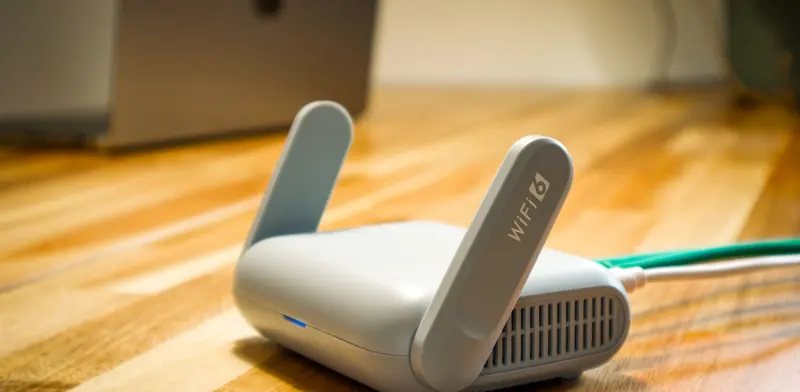
When the Wi-Fi stops working, everything seems to stop with it - email, cloud files, card terminals and video calls. The good news is that most outages come down to a handful of causes, and many can be sorted without any special tools. This guide walks through the checks we run at a home or office with a Wi-Fi complaint, in the order that tends to find the problem fastest.
Before you start, work out whether the problem is the wireless signal or the internet connection behind it. If a computer plugged into the router with a network cable also has no internet, the Wi-Fi is not the culprit and the fault is further upstream. If cabled computers work fine but wireless ones struggle, keep reading, because the fix is somewhere inside the building.
From $135 + GST + $30 call-out ($185.25 incl. GST)
Quick checklist
- Test with a cabled computer to rule out the internet line
- Restart the ONT, then the router, then any access points
- Check the router and ONT lights for red or flashing warnings
- Forget and rejoin the network on the problem laptop
- Update the Wi-Fi driver and the router firmware
- Move the router to a central, open spot
- Unplug cheap extenders and test again
Start with a proper restart
Routers and access points run small computers of their own, and they can lock up after long periods of use, a power flicker or a firmware hiccup. Turn the router off at the wall, leave it unplugged for a minute or so, then switch it back on and give it time to finish starting before you judge the result. If you have a separate modem or fibre ONT, restart that first, then the router, then any extra access points or mesh units, so each one picks up its connection from the device before it.
Check the lights and the cables
Most routers show their status with a row of lights. A red or amber internet light, or one that keeps flashing, usually means the router cannot reach your provider. Look at the cable between the fibre ONT and the router's WAN port and make sure it is pushed in until it clicks. Fibre ONTs have their own lights too, and a red LOS or alarm light points to a fault on the fibre line itself, which is a job for your internet provider rather than anything you can fix at the router.
- Power light steady, not flashing
- Internet or WAN light on and not red
- Cable from the ONT clicked firmly into the WAN port
- No kinks or crushed sections in visible cables
- ONT showing no alarm or LOS light
Is it one computer or all of them?
If only one laptop has trouble, the problem is probably on that machine. Turn its Wi-Fi off and on, forget the network and rejoin with the password, and install pending updates for the operating system and the wireless driver. Power-saving settings that turn the wireless card down can also cause dropouts. When everything struggles at once, look at the router instead. Has someone changed the Wi-Fi password, has the router reset itself after a power cut, or is a new arrival such as a camera system soaking up the connection?
Weak signal and dead spots
Wi-Fi is radio, and walls, floors, mirrors, metal shelving and even fish tanks absorb or bounce it. A router tucked in a cupboard, behind a TV or at one end of a long building will leave the far rooms struggling. Move it somewhere central and open, up off the floor and away from microwaves and cordless gear. The 5 GHz band is faster but travels less distance through walls than 2.4 GHz, so a laptop at the edge of coverage may hold on better on the slower band.
Interference and crowded channels
In apartments and shared office buildings, many networks compete for the same channels. Most routers pick a channel automatically, but some get stuck on a poor one. Logging in to the router's settings and letting it rescan, or choosing a quieter channel by hand, can make a real difference. Cheap plug-in extenders can also make things worse, because each one repeats the signal and cuts the speed for everything connected through it.
Router age and firmware
Routers have a working life. An older model may not support current Wi-Fi standards, may run out of memory when lots of devices connect, and may no longer receive security updates. Log in and check for a firmware update first. If none is available and the unit is several generations behind your laptops, replacing it is often the cleanest fix. In an office, a business-grade router with separate access points handles far more connections than the free unit supplied with an internet plan.
When to call a technician
Book a technician when the restarts and checks above have not helped, when dropouts keep coming back, or when an office relies on Wi-Fi for payments, calls or cloud software. We test the line, review the router configuration and measure signal through the building. Then we correct the settings, reposition or replace equipment, or add properly cabled access points so coverage holds up under real use.
From $135 + GST + $30 call-out ($185.25 incl. GST)
Related services
Wi-Fi & Network SetupWi-Fi that reaches every room. Networks that just work.Internet Setup & Provider ChangeoverNew fibre, wireless or Starlink internet connected, secured and every device reconnected.Network Health Check & DocumentationA full check of your network, with clear written documentation.Common questions
Why does my Wi-Fi work in one room but not another?
Distance and building materials weaken the signal. Concrete, brick, tiled walls, foil-backed insulation and metal cut Wi-Fi far more than timber and plasterboard. Moving the router to a central spot helps, and larger homes or offices usually need a second access point connected by cable, or a mesh system.
Should I just ask my internet provider for a new router?
It is worth asking if your unit is old or faulty, and many providers will swap a failed router. A replacement router alone will not fix poor coverage in a large or awkward building, though. That needs extra access points placed where the signal is weak.
Is it safe to reset my router to factory settings?
It is safe, but it wipes your Wi-Fi name, password and any custom settings, and some providers need login details entered before the internet works again. Note down the current settings first, and only reset once a normal restart has failed to help.
Can too many devices slow down Wi-Fi?
Yes. Every laptop, TV, camera and smart speaker shares the same airtime, and older routers struggle with many connections at once. Growing offices often hit that limit, which is when access points built for more users help.
More guides
- What is mesh Wi-Fi and do you need it?Mesh Wi-Fi uses several units working as one network to cover bigger homes and offices. Learn how it works, when it helps and when cabled access points win.
- Printer not working? A troubleshooting guidePrinter offline, jobs stuck in the queue, paper jams or faded prints? A step-by-step guide to fixing the most common printer problems on Windows and Mac.
- Choosing security cameras for your home or businessWired or wireless, NVR or cloud, how many megapixels and where to mount them. A practical guide to choosing a CCTV system that records what you need.
- Why is my computer slow? Causes and fixesA slow computer usually has a clear cause - an old hard drive, too little memory, startup clutter or malware. Here is how to find which one it is and fix it.
- Repair or replace your computer? How to decideWeighing up a repair against a new computer? Look at the fault, its age, Windows 11 support and your data to make a sensible call for home or business use.