
Guide · 5 min read
Printer not working? A troubleshooting guide
Printer offline, jobs stuck in the queue, paper jams or faded prints? A step-by-step guide to fixing the most common printer problems on Windows and Mac.
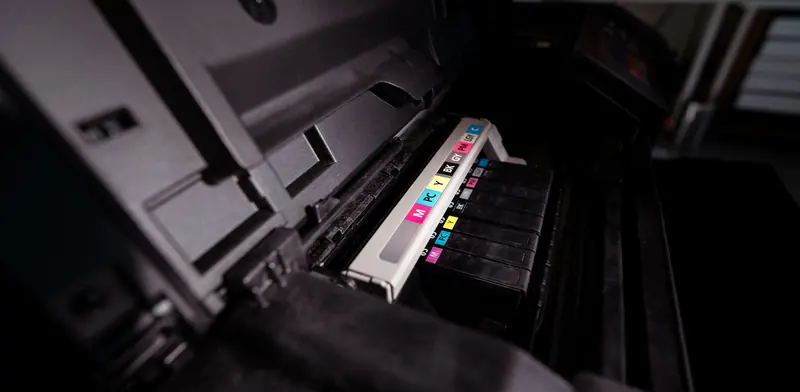
Printers seem to fail at the worst possible moment, usually with a vague message like offline or error. The good news is that most printer problems come from a handful of causes, and many can be sorted at the desk without tools. The trick is to work methodically, one step at a time, rather than reinstalling everything at once.
This guide goes through the common faults on laser and inkjet printers connected to Windows and Mac computers, from connection problems and stuck jobs to jams and poor print quality, and explains when the fault is likely to be in the printer itself and worth a repair rather than another restart.
From $135 + GST + $30 call-out ($185.25 incl. GST)
Quick checklist
- Read the message on the printer's own screen
- Restart the printer and the computer
- Check the printer is on the right Wi-Fi network
- Clear the print queue
- Reinstall using the manufacturer's current driver
- Remove all torn paper after a jam
- Run the cleaning routine on inkjets
Start with the basics
Look at the printer's own screen or lights first, because it often says exactly what is wrong: out of paper, a door open, a cartridge not recognised. Turn the printer off, wait a little, and turn it on again, then restart the computer too. Check the cable at both ends if it is wired, and confirm the paper tray is pushed fully in. It sounds obvious, but a surprising number of call-outs end with a tray that was not quite seated or a toner door that was not clicked shut.
Printer shows as offline
Offline usually means the computer cannot find the printer on the network. If the printer is on Wi-Fi, check it is still connected, as a router replacement or a changed Wi-Fi password will leave it trying to join the old network. Print a network configuration page from the printer's menu to see its IP address. If that address has changed since the printer was installed, the computer is looking in the wrong place. A fixed address, set either on the printer or as a reservation in the router, stops this happening again.
- Confirm the printer and computer are on the same network
- Print a configuration page to see the printer's IP address
- Remove and re-add the printer on the computer
- Give the printer a fixed or reserved IP address
- Avoid guest networks, which block printing by design
Jobs stuck in the queue
A single damaged print job can block everything behind it. On Windows, open Settings, then Bluetooth and devices, then Printers and scanners, select the printer and open the print queue, then cancel all documents. If they will not clear, the Print Spooler service may need restarting from the Services tool. On a Mac, open the printer's queue from System Settings and delete the jobs. If the queue clears and new jobs still stall, removing the printer and adding it again with the manufacturer's current driver often fixes the underlying fault.
Paper jams and feeding problems
Always switch the printer off before reaching inside, and let laser printers cool, because the fuser gets very hot. Pull jammed paper gently in the direction it travels so it does not tear, and check for small torn pieces left behind, which cause repeated jams. Use paper within the weight the printer supports, fan the stack before loading and do not overfill the tray. If a printer picks up several sheets at once or none at all, the pickup rollers may be worn or dirty, which is a common repair on busy office machines.
Faded, streaky or blotchy prints
On an inkjet, run the cleaning and nozzle check routine from the printer's maintenance menu, as dried ink blocks the nozzles if the printer sits unused. On a laser printer, faded pages usually mean low toner, and gently rocking the cartridge from side to side can buy a little more life. Streaks repeating at regular intervals down the page often point to a damaged drum or fuser. Non-genuine cartridges vary in quality, and a cheap cartridge that leaks can cost more in repairs than it saved.
Scanning and scan-to-email failures
Multifunction printers that scan to email or a shared folder stop working when passwords change or email security tightens. Many older devices were set up to send through a mail account using a plain password, which Microsoft 365 and other providers increasingly block. Scan to folder breaks when the computer's password changes or when an update disables older file sharing methods. These are configuration fixes rather than hardware faults, but they need the right mail or network settings to set up securely.
When to call a technician
Book a technician if the printer jams repeatedly, prints with marks you cannot clean away, shows hardware error codes, or if several computers cannot print to it. We will check rollers, fuser and drum for wear, set a fixed network address, install the correct drivers on each computer, repair scan-to-email and scan-to-folder, and tell you honestly whether the printer is worth repairing.
From $135 + GST + $30 call-out ($185.25 incl. GST)
Related services
Printer Repair & ServicingJams, streaks and error codes fixed onsite.Printer InstallationNew printers and copiers set up on every computer.Wi-Fi & Network SetupWi-Fi that reaches every room. Networks that just work.Common questions
Why does my printer keep going offline?
The most common reason is that its network address keeps changing, so computers lose track of it. Weak Wi-Fi where the printer sits and power saving settings can also cause it. A reserved IP address or a network cable usually makes the printer reliably available.
Should I install the driver from the manufacturer or use the built-in one?
Windows and macOS often install a basic driver automatically, which is fine for simple printing. For trays, duplex, finishing options and scanning, the manufacturer's current software usually works better. Download it from the manufacturer's own website, not a driver download site.
Is it worth repairing an old printer?
For a solid office laser or multifunction device, replacing worn rollers or a fuser is often worthwhile. For a low-cost home inkjet with a serious fault, replacement is frequently more sensible. A technician can tell you which applies once the fault is diagnosed.
Why does scan to email suddenly not work?
Usually the email provider has stopped accepting the old sign-in method the scanner was using, or the mailbox password changed. The scanner needs reconfiguring with a supported sending method. Many printers need a firmware update before they can use modern secure email settings.
More guides
- Wi-Fi not working? How to fix it at home or workWi-Fi dropping out or crawling? Work through these practical checks for routers, laptops and coverage at home or in the office, and know when to get help.
- What is mesh Wi-Fi and do you need it?Mesh Wi-Fi uses several units working as one network to cover bigger homes and offices. Learn how it works, when it helps and when cabled access points win.
- Why is my computer slow? Causes and fixesA slow computer usually has a clear cause - an old hard drive, too little memory, startup clutter or malware. Here is how to find which one it is and fix it.
- Repair or replace your computer? How to decideWeighing up a repair against a new computer? Look at the fault, its age, Windows 11 support and your data to make a sensible call for home or business use.
- Which computer upgrades are worth the money?Not every upgrade earns its keep. See which computer upgrades - SSDs, memory, batteries, monitors and docks - give real gains, and which ones rarely pay off.