
Guide · 5 min read
How to move your files to a new computer
Got a new computer? Here is how to move documents, photos, email, passwords and programs across safely, without leaving anything important behind.
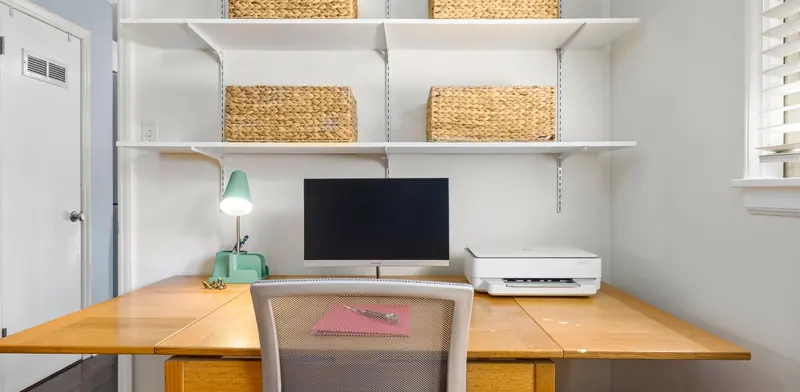
Unboxing a new computer is the easy part. Moving years of documents, photos, email, browser bookmarks and saved passwords from the old one is where people get stuck, and where files quietly get left behind. A little planning before you start makes the move smoother and means you can wipe the old machine with confidence once everything is safely across.
This guide covers what to gather before you begin, the main ways to copy files across, how to handle email and programs, and what to check before the old computer goes. It applies to Windows and Mac computers, and to moving between the two, whether you are setting up one machine at home or a new desk at work.
From $60 + GST ($69 incl. GST) for remote help, no call-out fee
Quick checklist
- List your programs, accounts and licence keys
- Make a full backup of the old computer first
- Copy Documents, Desktop, Pictures and Downloads
- Sign in to email and export any older POP mail
- Sync browser bookmarks and passwords
- Reinstall programs from official sources
- Check everything works before wiping the old computer
Make a list before you start
Spend a few minutes on the old computer working out what actually needs to come across. Documents, Desktop, Pictures, Music and Downloads hold most people's files, but programs also store data in less obvious places. Note every program you use and whether you have its installer and licence key. Check that you know the passwords for your Microsoft, Apple and Google accounts, because the new computer will ask for them.
- Documents, Desktop, Pictures and Downloads folders
- Email accounts and any local email archives
- Browser bookmarks and saved passwords
- Licence keys for paid software
- Accounting or business software data files
- Printer and scanner model details
Back up first, then copy
Before moving anything, make a full backup of the old computer to an external drive. This protects you if something goes wrong part way through, and gives you a copy to come back to if you later discover a missing file. Then copy your files to the new computer from that drive, or use a method that transfers directly between the two machines. Keep the backup safe until you are certain everything has arrived and works.
Ways to copy your files
An external USB drive is the simplest and most reliable method for most people: copy the folders off the old computer, then onto the new one. Cloud storage such as OneDrive or iCloud Drive also works, because once your files are synced, signing in on the new computer brings them down automatically. Macs include Migration Assistant, which moves files, accounts and settings from an older Mac or a Windows PC across the network. Copying across a home network is possible too, but it can be slow and fiddly with large photo libraries. Whichever method you choose, compare file counts and folder sizes afterwards to confirm nothing was skipped.
Email, passwords and browser settings
Modern email accounts such as Microsoft 365, Outlook.com and Gmail store everything online, so signing in on the new computer brings mail, contacts and calendars across. Older accounts set up as POP may keep mail only on the old computer, in a data file that needs exporting separately. Browser bookmarks and passwords come across if you sign in to the browser's sync, or to a password manager, on both machines - set that up before the old computer is gone.
Reinstalling programs
Programs cannot simply be copied across; they need to be installed fresh on the new computer. Download them from the publisher's official website and sign in or enter your licence key. Some software, such as older Microsoft Office versions and accounting packages, limits how many computers it can be installed on, so deactivate it on the old machine first where that option exists. Check that any older program runs on the new version of Windows or macOS before you rely on it.
Before the old computer goes
Use the new computer for a while before wiping the old one, opening your important files, email and programs to confirm everything is there. Then sign out of your accounts on the old machine and wipe it using the reset option that removes everything. For an older computer with a mechanical drive that is being passed on or recycled, a secure wipe matters even more, because simply deleting files leaves them recoverable.
When to call a technician
Book a visit if you would rather not risk missing anything, if the old computer will not start, or if the move involves business software, local email archives or several machines at once. We back up the old computer, move files, email, bookmarks and settings across, reinstall your programs, connect printers and check it all with you. Then we wipe the old machine so it is safe to pass on or recycle.
From $60 + GST ($69 incl. GST) for remote help, no call-out fee
Related services
Home Tech HelpPatient, friendly help with anything techy at home.PC & Laptop RolloutsNew computers prepared, deployed and old ones wiped and retired.Backup Setup & Disaster RecoveryBackups that follow the 3-2-1 rule and are restore-tested.Common questions
Can I move my programs to a new computer?
Most programs need to be installed again rather than copied, because they register themselves deep inside the operating system. Your data files can come across, but the program itself should be downloaded fresh from the publisher. Have licence keys and account logins ready before you start.
Can I move files from Windows to a Mac?
Yes. Documents, photos and music move across without trouble, and Apple's Migration Assistant can copy files and some settings directly from a Windows computer. Windows-only programs will not run on a Mac, so you may need Mac versions or alternatives for some software.
What if my old computer will not turn on?
Your files may still be recoverable. If the storage drive is healthy, it can usually be removed and read with the right adapter, or connected to another computer to copy files off. Avoid repeated attempts to start a computer that is making unusual noises.
Is it safe to give away my old computer?
Only once it has been wiped properly. Deleting files or emptying the recycle bin is not enough, as deleted files can often be recovered. Use the full reset option that removes everything, and sign out of your Microsoft or Apple account on the computer first.
More guides
- What is mesh Wi-Fi and do you need it?Mesh Wi-Fi uses several units working as one network to cover bigger homes and offices. Learn how it works, when it helps and when cabled access points win.
- Laptop buying guide for New ZealandBuying a laptop in New Zealand? Plain advice on processors, memory, storage, screens, ports and business versus home models so you choose the right one.
- Wi-Fi not working? How to fix it at home or workWi-Fi dropping out or crawling? Work through these practical checks for routers, laptops and coverage at home or in the office, and know when to get help.
- Why is my computer slow? Causes and fixesA slow computer usually has a clear cause - an old hard drive, too little memory, startup clutter or malware. Here is how to find which one it is and fix it.
- Repair or replace your computer? How to decideWeighing up a repair against a new computer? Look at the fault, its age, Windows 11 support and your data to make a sensible call for home or business use.